 AI
AI Export Your BGG Collection as CSV: A 5-Step Guide
· boardgame.tips Editorial Team
You get your game collection out of BoardGameGeek as a CSV file through a link on your collection page: profile picture → Collection → "Download board games: all". There is no "Export" button that hands you the file right away. BGG only accepts the request and delivers the file later, by email and to your Geekmail. If you don't know that, you click "all", see a short confirmation and wait in vain for a download in your browser.
This guide shows every step with a screenshot (taken on October 31, 2026) and explains what the file contains and how to load it into the Game Night planner on boardgame.tips.
Key takeaways
- The path: sign in to BGG, click your profile picture in the top right, choose "Collection", then click "all" next to "Download board games" above the table on the right.
- No instant download: BGG replies "Your request for this collection has been accepted and will be processed." The file then arrives by email and in your Geekmail.
- "all" or "owned": "all" also includes your wishlist and past games, "owned" only what you own.
- No registration needed: according to BGG, you may download your own collection while logged in without a registered application.
- In the Game Night planner: the CSV is only read in your browser, nothing is uploaded.
What you need first
You need a BGG account with your games entered, and you need to be logged in. BoardGameGeek explicitly allows downloading your own collection without a registered application, as long as you do it "directly from the site while logged in" (BoardGameGeek: Using the XML API, version of July 2, 2025). You can also download other users' collections while logged in, but according to the same page they are heavily rate limited.
You only need a spreadsheet program if you want to look at the file yourself. For the Game Night planner, your browser is enough.
Step by step: download your BGG collection as CSV
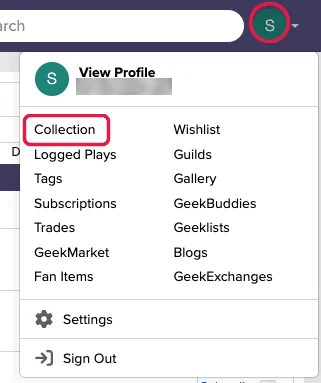
1. Click your profile picture and choose "Collection"
Sign in at boardgamegeek.com and click your profile picture in the top right. "Collection" is the first entry on the left in the menu that opens.
2. Click "all" next to "Download board games"
On your collection page, the line "Download board games: (all | owned)" sits above the table on the right. Click "all".
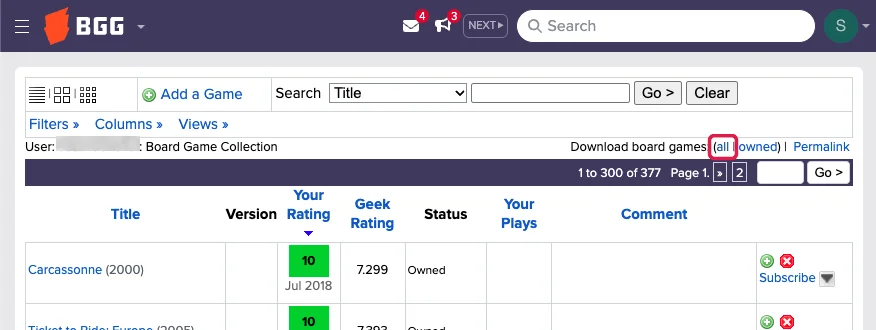
"all" or "owned"? "owned" limits the download to the games you have marked as owned. "all" delivers the whole collection, including entries with the status wishlist, "Want to Buy" or "Previously Owned". For the Game Night planner, "all" is the better choice: owned games go onto your shelf, wishlist games onto your wishlist.
3. Wait for the confirmation
BGG now shows no download but the notice "Your request for this collection has been accepted and will be processed." Only now is the file being created. You don't need to do anything else on this page and can close it.
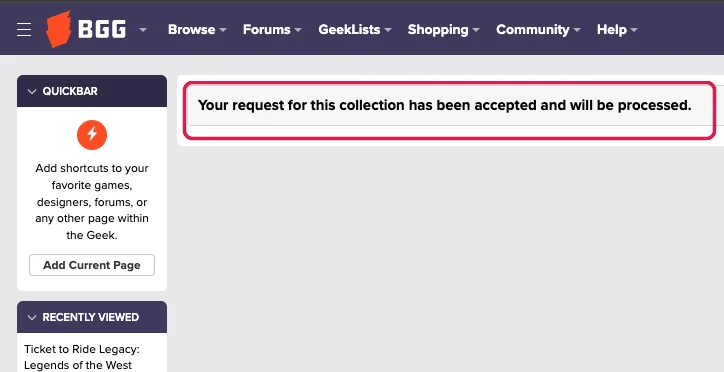
4. Wait for the email or check Geekmail
As soon as the file is ready, you get an email from BGG. The same message lands in your Geekmail, the inbox on BoardGameGeek. If no email arrives, check there regularly, and also look in your email spam folder. BGG does not state a fixed processing time.
5. Save the CSV and load it into the Game Night planner
Save the CSV file from the message. Then open the Game Night planner, scroll to "Your collection" and choose "Upload BGG export (CSV)". The planner tells you how many games it imported. The link "How to get the CSV file from BoardGameGeek" right below the button opens a short version of this guide.
What the CSV file contains
The file has one row per collection entry and a header row with the column names. The Game Night planner reads only a few of the columns:
| Column | Meaning | What the planner does with it |
|---|---|---|
objectid |
BGG ID of the game | identifies the game, required column |
own |
1 = you own it | game goes onto your shelf |
wishlist, wanttobuy |
wishlist or want-to-buy list | game goes onto your wishlist |
numplays |
number of logged plays | shows "played 3×" |
itemtype |
base game or expansion | expansions stay in, but don't count as a game of their own |
If the objectid column is missing, it isn't a BGG collection file, and the planner says so. Entries that are neither owned nor wished for, such as "Previously Owned", are skipped.
Privacy: the CSV is read only in your browser. Your collection stays in this device's local storage and never reaches a server.
If it doesn't work
- No download after the click: that's normal. BGG delivers the file later, see step 4.
- The "Download board games" link is missing: check that you're logged in and have opened your own collection. The path via the profile picture always leads to your own.
- The planner reports that the objectid column is missing: you probably opened the file in a spreadsheet program and saved it in a different format. Download the original CSV from the BGG message again.
- Games are missing from your shelf: if you picked "owned" instead of "all", the wishlist is missing. Games that aren't marked "Own" on BGG don't land on your shelf.
Bottom line
Exporting your BGG collection as CSV takes just a few clicks: profile picture → Collection → "Download board games: all". The catch is the wait, because the file only arrives by email and Geekmail. After that, the Game Night planner reads it in seconds and suggests games from your own shelf for your next evening.
Frequently asked questions
Where is the export button on BoardGameGeek?
There is no button called "Export". The download hides behind the "all" link (or "owned") in the "Download board games" line on the right above your collection table.
Why doesn't the download start right away?
BGG creates the file in the background and only confirms that the request was accepted. The finished file arrives by email and in your Geekmail.
Do I need an API key or a registered application?
No. For your own collection, downloaded directly from the website while logged in, BGG requires no registration (BoardGameGeek, July 2, 2025).
Can I open the CSV in Excel?
Yes, the file is a regular CSV table with a header row. For the Game Night planner, though, use the unmodified original file.
Is my data uploaded when I load the file?
No. The planner reads the file in your browser and stores the collection only locally on your device.